Wednesday, 16 August 2017

Beaglebone Black -QNX -QT Support

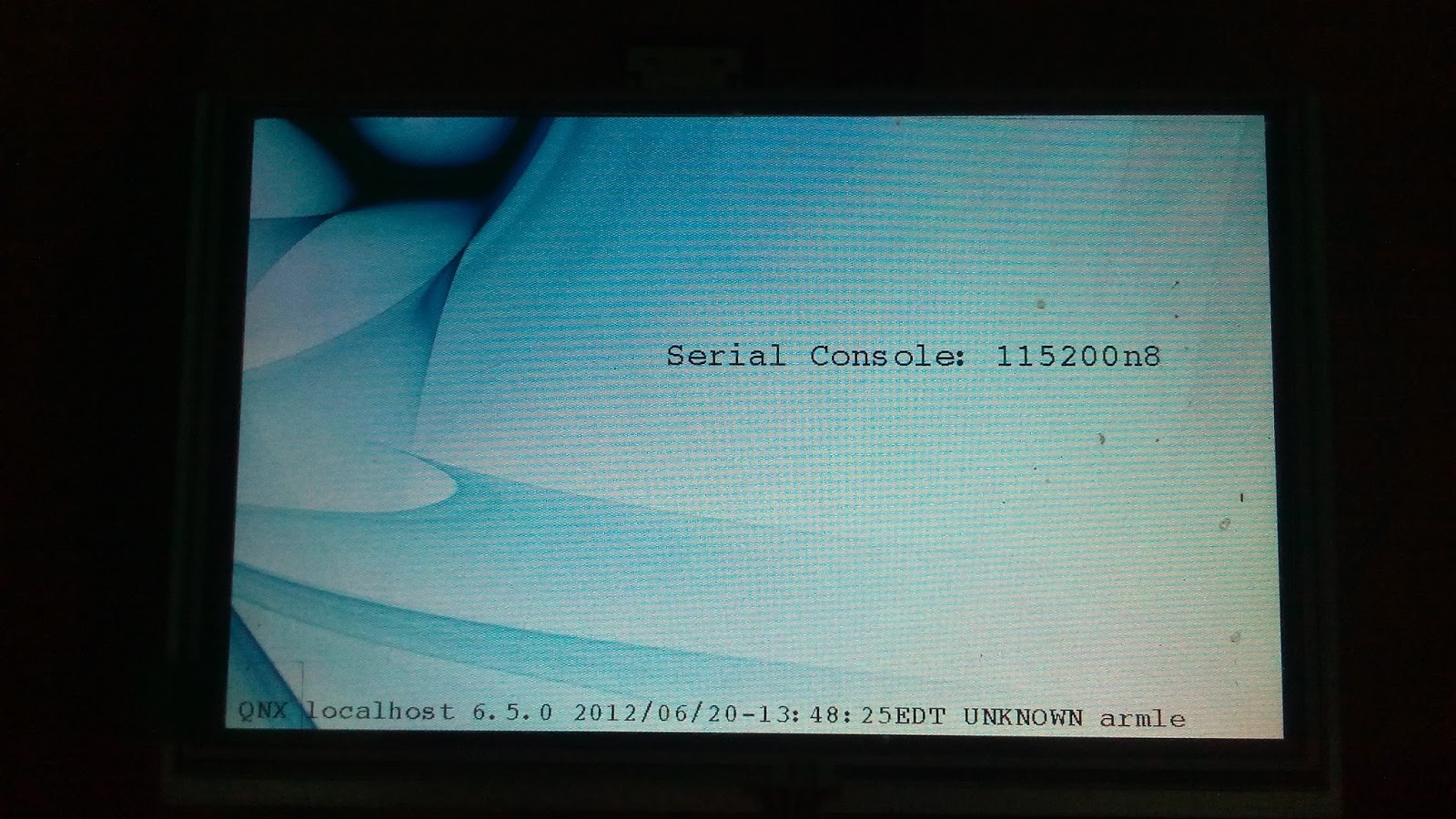
I spent several weeks to workaround beagle bone black graphics (HDMI) QNX support & made some demo programs to run on that ..

It supports USB mouse /keypad /pendrive / HDMI Display/Network /EMMC/UART/SPI/CAN ..

This would be the low cost board 100% supported by QNX ..

It still needs some cleanups , I haven't decided whether I should opensource it /Sell it /ask for some donation.

QT  is much better than Photon windows manager . With QT  ,A whole range of programs Linux programs can be ported to QNX ..

Few clicks ..

{other project "Raspberry QNX" open source project is steadily moving , eMMC Support testing is in progress . soon it will be pushed in to github. next step would be USB..}


3 Applications are running , 1. QTDemo 2.QT browser 3. QT GUI Designer (screen resolution yet to be fixed)

Planning to make/port  a QT based CAN Analyser , which would work on Windows /Linux /QNX.


Testing Video


update : I am making it open source ... will be uploaded soon in my github ... Enjoy ..

Friday, 2 June 2017

Raspberry BCM2835 - uC/OS uC/GUI


Note : This software is given here purely for academic purpose , So Kindly contact sales@micrium.com   , If you decided to use uC/OS or uC/GUI in your product, refer their license terms ..   The work I have done (Raspberry Porting ) is distributed under MIT license ..  This software is given here with the intention that it can useful to learn both these products.  

What is working 

1. Kernel 
2.GUI  
3.You can access  peripherals(I2C/SPI/GPIO ) using Baremetal code
4. SPI-Touch  - planned , but not implemented 
5. USB -Mouse ( included csud driver - not working fully)
6. Repaint of screen requires some fix

Compiling it on Windows 

1.download  gcc-arm-none-eabi-4_7-2013q3-20130916-win32.exe  ( I am using this version)
while installing uncheck environment variable option . 
2.  Go to  C:\Program Files (x86)\GNU Tools ARM Embedded\4.7 2013q3\bin     " gccvar.bat"  run this file .
3. cd "project directory"   then "make " 
4.image size defined here is  uCGUI\Config\LCDConf.h   800x480 , change is according to your screen

Running 

Copy the kernel.img to SD code & replace the existing one .


Code is here 
           https://github.com/varghes/Raspberry-uCOS-uCGUI                 


Sunday, 7 May 2017

stm32f103c8t6 Serial /SWD programming issue


I  had two peculiar programming issues 

1. Serial programming works (Demonstrator GUI ) sometimes  connects , some times it wont . I found a pattern

    a. Set Boot0 jumber to 3.3V
    b. First connect the USB-UART to PC 
    c. Then power ON STM32 device   
      this times it works ...   the other way that is connecting STM32 First & USB-UART Second is not        working 

2.SWD is not connecting  ... (ST Link Utility )

you might have accidentally not selected  Serial Wire Debug option under STM32Cubemx. 
That will disable further debugging  , only option to recover is 

Set Boot0 jumber 3.3V  & program the software that enabled serial Wire debug option.


Thursday, 19 January 2017

Fx2lp - CY7C68013A development board

I am a big fan of USB... I have personally worked on many USB related projects


This was lying on my table for years I did n't know what to do with this board ..
I didn't have the schematic too


Actually this schematics covers all , except those 2 LEDS , They are connected to PA0, PA1 pins 


  1. Install CY3684 EZ-USB FX2LP DVK Setup software
  2. Install GPIF Designer software
  3. Install SuiteUSB software
Here is my Project files , Unzip it 


3  things 

1. Bulkloop Application 
     This is to send data to the device (testing )  .. You can modify this for your final USB PC application development


2. CYControl ( Detect Development Board & Download Firmware in to the device )
      You can use this to download hex file to the device 

3.Keil ( Remember this is size limited version )  ... So people sometimes chose sdcc compiler.( That works better on linux)

Double click & open it ..


Build it .. 


once build is done , use the "cycontrol" tool to download the hex file to the device .. 
I put a small code to blink the led when you send 01 ..(use bulk loop pc application)


For cypress ,no code explanation required :)  


Saturday, 31 December 2016

STM32-Arduino -STM32f103c8t6 Programming Guide

This boards costs around 1.7$ ( including shipment all over the world  ) in aliexpress.com..  low cost , extremely powerful controller than normal Arduino


  • ARM® 32-bit Cortex® -M3 CPU Core
    • 72 MHz maximum frequency,1.25 DMIPS/MHz (Dhrystone 2.1) performance at 0 wait state memory access
    • Single-cycle multiplication and hardware division
  • Memories
    • 64 or 128 Kbytes of Flash memory
    • 20 Kbytes of SRAM
  • Clock, reset and supply management
    • 2.0 to 3.6 V application supply and I/Os
    • POR, PDR, and programmable voltage detector (PVD)
    • 4-to-16 MHz crystal oscillator
    • Internal 8 MHz factory-trimmed RC
    • Internal 40 kHz RC
    • PLL for CPU clock
    • 32 kHz oscillator for RTC with calibration
  • Low-power
    • Sleep, Stop and Standby modes
    • VBAT supply for RTC and backup registers
  • 2 x 12-bit, 1 μs A/D converters (up to 16 channels)
    • Conversion range: 0 to 3.6 V
    • Dual-sample and hold capability
    • Temperature sensor
  • DMA
    • 7-channel DMA controller
    • Peripherals supported: timers, ADC, SPIs, I2 Cs and USARTs
  • Up to 80 fast I/O ports
    • 26/37/51/80 I/Os, all mappable on 16 external interrupt vectors and almost all 5 V-tolerant
  • Debug mode
    • Serial wire debug (SWD) & JTAG interfaces
  • 7 timers
    • Three 16-bit timers, each with up to 4 IC/OC/PWM or pulse counter and quadrature (incremental) encoder input
    • 16-bit, motor control PWM timer with dead-time generation and emergency stop
    • 2 watchdog timers (Independent and Window)
    • SysTick timer 24-bit downcounter
  • Up to 9 communication interfaces
    • Up to 2 x I2 C interfaces (SMBus/PMBus)
    • Up to 3 USARTs (ISO 7816 interface, LIN, IrDA capability, modem control)
    • Up to 2 SPIs (18 Mbit/s)
    • CAN interface (2.0B Active)
    • USB 2.0 full-speed interface

1.Install the latest version of  Arduino

2.Arm Compiler Installation 
  In arduino menu Go to "Tools" -> "Boards" -> "Boards Manager"  & click "install."
( This board uses same gcc compiler used by Atmel SAM boards )


If you fail to install the compiler , you get an error message like this 
exec: "/bin/arm-none-eabi-g++": file does not exist Error compiling for board Generic STM32F103C series.


Installation takes some time


3. Once Installation is over goto  https://github.com/rogerclarkmelbourne/Arduino_STM32    & download it 

4.Extract the zip file  ,and copy it in to "C:\Program Files (x86)\Arduino\hardware"    folder..  [if you have installed Arduino in to other place of your choice , copy it there .

Windows XP or other 32 bit OS path will be , 
C:\Program Files \Arduino\hardware

5. Connection is made like this 


You can use any serial adapter with 3.3V level ... FTDI , CH340G works fine


6.  Now Open Arduino  & "Tools" Menu  and Select 

Board :Generic STM32F103C Series
Variant: STM32F103C8 (20k,RAM.64k Flash)
Upload Method:Serial
Port : (based on your USB to Serial device)

7.Copy & compile the below code

#define pinLED PC13

void setup() {
  Serial.begin(9600);
  pinMode(pinLED, OUTPUT);
  Serial.println("START");  
}

void loop() {
  digitalWrite(pinLED, HIGH);
  delay(1000);
  digitalWrite(pinLED, LOW);
    delay(1000);
  Serial.println("Hello World");  
}

if everything is fine it will compile ..

8. on the board set the BOOT0 to 1 


Power ON the USB and before start uploading , press 'RESET' button once .. and click "upload"

Reset button & jumper setting  force the controller to go to bootloder mode.
Incase if you have not pressed the reset button /jumper setting is not set proper , you get an error message like this " Failed to init device"


If everything goes fine you get a message like this 


Now you should be able to see the LED blinking ..

Once programming is done ,board runs automatically , no need to change the jumber ..If you are just debugging your code, leave the jumper as it is ..  Otherwise once programming is done, move it back to the previous position.